The Annotated GRE Calculator: Guide on How to Use It
Quant · Strategy
This is The Annotated GRE Calculator, a hands-on guide on the Quant on-screen pad. Every instruction names the button on that keypad. Practice the presses on our live tool, then use the same pad inside a timed Quant session.
Start here: Free GRE On-Screen Calculator
This is not the score calculator and not the questions-missed calculator. Those estimate scaled scores. This pad does arithmetic in a Quant section.
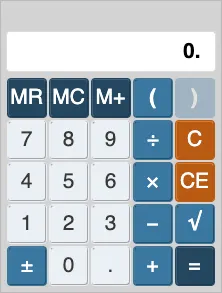
What you are looking at
The display starts at 0. It shows only the current number. Operators, parentheses, and the pending expression never appear on screen. Integers keep a trailing dot (4.). Thousands get commas (3,357.). You can type at most 8 digits (minus, commas, and that trailing dot do not count).
Read the pad by row, using the labels you actually press:
- MR MC M+ ( ) — memory and one level of grouping. ) is dead until a group is open. There is no M− on this pad. When memory is holding a number, M appears next to the display.
- 7 8 9 ÷ C — C clears the whole expression back to
0.Memory stays. - 4 5 6 × CE — CE clears only the number you are typing. A pending + or × stays.
- 1 2 3 − √ — − subtracts. √ takes the square root of whatever is on the display right now.
- ± 0 . + = — ± flips the sign of the displayed number. It is not the − button.
On the public tool, that is the whole pad. In a Quant session you also get Transfer Display under the keys, a title bar you can drag, and a × to close. The window stays on the white exam area. It will not go onto the gray bars on the left and right — that gets its own section below.
The display never shows the operator
This is the whole personality of the GRE calculator. Do this once before anything else.
- Press 4. Display:
4. - Press +. Display: still
4. - Press 6. Display:
6.
+ was accepted. The display did not change, because the display is not a tape of the expression. If you wait for 4+ to appear, you will sit there thinking the button failed.
Order of operations
The pad is a basic 8-digit calculator that still does multiplication and division before addition and subtraction.
Goal: 4 + 6.73 ÷ 2
Press: 4 + 6 . 7 3 ÷ 2 =
Display: 7.365
Left-to-right would have been 5.365. ÷ happens before +.
The same rule, smaller: press 1 + 2 × 4 =. Display: 9. not 12.
When you need addition first, wrap it. Press ( 8 . 4 + 9 . 3 ) ÷ 7 0 =. Display: 0.2528571
Then press ±. Display: -0.2528571
After (, the ( button is dead until you press ) or C. One open group. You cannot nest.
A conversion that is actually worth the pad: 6 mph to feet per second.
Press: 6 × 5 2 8 0 ÷ 3 6 0 0 =
Display: 8.8
C versus CE, and what happens after equals
Wrong digit, expression still good: press 5 + 3. Display: 3. Press CE. Display: 0. The 5 + is still pending. Press 7 =. Display: 12.
C is different. Press 5 + 3 C. Display: 0. Everything is gone. Memory is not.
After =, a digit starts a new calculation. An operator continues from the result.
Press 3 + 2 =. Display: 5. Press + 4 =. Display: 9.
From that 5., press 7 instead of + and you are starting over, not appending.
Press = a second time and nothing happens.
Hit the wrong operator: press 5 + − 3 =. Display: 2. The last operator wins. − replaced +.
Keyboard keys that press a real button
Clicking 7 8 9 ÷ with the mouse is fine while you learn the labels. It is slow in a section. Faster calculator work is keyboard work: your hands already know where + * / Enter and c sit, so you are not hunting buttons on the pad while the clock runs.
Use a full-size external keyboard and mouse, such as an A4Tech or a similar desktop layout — not only a laptop keyboard and trackpad. Test centers in Bangladesh often feel like that: a big external keyboard, not a laptop. Prepare for that layout. It is not a promise that every center worldwide issues A4Tech.
If you use the numeric keypad, NumLock must be on.
| You press on the keyboard | Same as this button |
|---|---|
0–9 | 0–9 |
. | . |
+ | + |
- | − |
* | × |
/ | ÷ |
Enter or = | = |
( ) | ( ) |
c | C (all clear, not CE) |
Esc | Closes the window in an exam session. Not a calc button. |
There is no key for CE, √, ±, MR, MC, M+, or Transfer Display. There is no Backspace. A wrong digit after 5 + means click CE, then the right digits.
Do the PEMDAS example again from the keyboard: 4 + 6 . 7 3 / 2 Enter. Display: still 7.365. You are watching the same pad. / is ÷. c is C, which wipes the pending expression, not CE.
Square root, sign flip, and parentheses
√ uses the displayed number. It does not secretly root an unevaluated expression.
Press 2 √. Display: 1.4142136 (eight significant digits).
A Pythagorean that needs = first so the display is already the sum of squares:
Press: 2 1 × 2 1 + 5 4 × 5 4 =
Display: 3,357.
Then press √. Display: 57.939624
√ has no keyboard alias. Compute, then click it.
± vs −: cube of −15.
Press: 1 5 ± × 1 5 ± × 1 5 ± =
Display: -3,375.
If you had used − instead of ±, you would have been subtracting, not negating the 15.
Negative root: press 5 ± √. Display: ERROR. Then C.
With a closed group, press 5 × ( 3 + 2 ) =. Display: 25.
Eight digits, overflow, and ERROR
You cannot type a ninth digit. That is why a tiny result sometimes needs two steps.
Press 1 ÷ 1 0 0 0 0 =. Display: 0.0001
Press ÷ 1 0 0 0 0 =. Display: 0.
That second result is underflow: smaller than 0.0000001, so the pad shows 0. It is not scientific notation.
Overflow: press 1 0 0 0 0 0 0 0 × 1 0 =. Display: ERROR
Divide by zero: press 6 ÷ 0 =. Display: ERROR
After ERROR, extra digits do nothing useful. Press C. Display: 0. Then either redo the arithmetic or put the calculator down and estimate.
Memory: M+, MR, MC
One memory slot. M+ adds the displayed number to it. MR puts that stored value on the display. MC clears it and removes M. If M is already showing, press MC before a new running total.
A weighted average is the case where memory is faster than rewriting every product.
Goal: (43×60 + 21×80 + 16×100) ÷ (43+21+16)
- Press 4 3 × 6 0 =. Display:
2,580.Press M+. M appears. - Press 2 1 × 8 0 =. Display:
1,680.Press M+. - Press 1 6 × 1 0 0 =. Display:
1,600.Press M+. - Press MR ÷ ( 4 3 + 2 1 + 1 6 ) =. Display:
73.25 - Press MC. M is gone.
M+, MR, and MC are mouse-only. Do not hunt for a keyboard letter.
Transfer Display, exam only
The public tool has no Transfer button. In a Quant session, Transfer is enabled after a result that is not 0. or ERROR. It copies the displayed number into a single Numeric Entry box.
If the question wants a percent, a rounded value, or a different form, edit after you transfer. Do not dump a raw display into a fraction item or a two-blank.
Where it can move, and where it cannot
On the public tool, the pad sits still on the page. In a Quant session it is a window. Grab the title bar (not a number key) and drag. Close with ×, or press the Calc icon again, or Esc.
It only moves inside the white exam area — the question, the options, the header. It will not go onto the gray bars on the left and right. If you keep dragging toward a gray margin, it hits the edge of the white box and stops. That is easy to miss if you only practiced on the standalone calculator, then on test day you waste seconds fighting the window instead of answering.
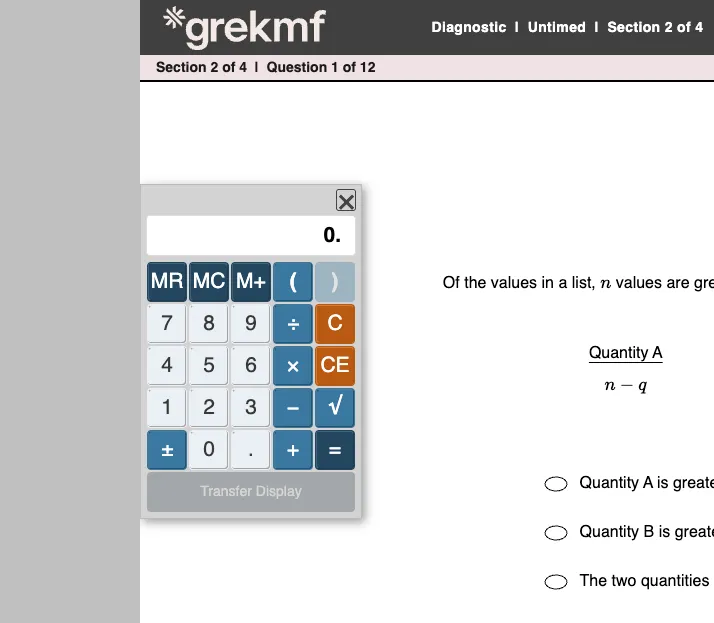
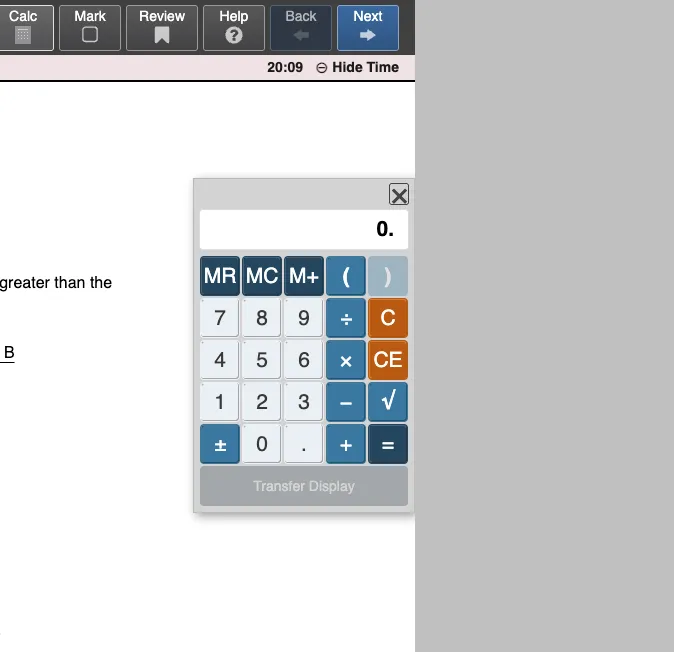
The two screenshots are that constraint: same pad, gray on the left in one, gray on the right in the other, calculator still on the white canvas. Transfer Display is gray in both because the display is 0.; it lights up after a real result, and only on a single Numeric Entry box.
The standalone pad is for learning C, CE, ÷, √, M+. The in-exam pad is for opening it, parking it so it does not cover Quantity A / Quantity B, using it, and closing it while a question is in front of you. Those are different skills.
To feel that GRE-session calculator — drag limits, Calc in the toolbar, Transfer Display, Esc — open the free diagnostic and start a Quant section:
https://grekmf.com/resources/gre-diagnostic-test
No account. 54 Quant + Verbal, exam-style shell, on-screen calculator on Quant. It is the first 24Set. If you already used that set, it is no longer unseen; it is still the right place to rehearse the window. Learn the keys on the public calculator, then type the same PEMDAS example in the diagnostic so the drag and the keys happen together.
When not to open it
Most Quant is reasoning. Opening the window to press × and = on small integers is slower than scratch paper.
Leave it closed when the work is algebra, quantitative comparison with variables, or an estimate. The pad will happily compute a precise number that answers the wrong question.
Skip it when you are unsure about ( ). If the grouping is the hard part, rewrite on paper first.
Do not fight ERROR by mashing keys. C, then either retry or estimate.
Do not Transfer and walk away on a percent or rounding question.
If the arithmetic really is the bottleneck, open it, drag it once so it stays on the white area and does not cover the stem, use the keyboard for the arithmetic, and close it (Esc or Calc) when you go back to reading.
Practice on the pad, then in a session
Click every example above on the GRE on-screen calculator. No account.
Then feel the exam-day window on the free GRE diagnostic — open Calc, drag within the white box, hit Esc.
Then put the same pad next to a bank of Quant items. The free KMF 1000 Quant on GREKMF uses this calculator in session: Practice the KMF 1000 Quant — Start → KMF Quant → Set 1 → Start. How we run that bank is here: A Cleaner Way to Practice the KMF 1000 Quant.