GRE Practice on Your Phone: Mobile Exam Layout
Quant · Verbal · Strategy
A GRE practice set used to assume a wide screen. On a phone, the passage and the question shared one cramped row, and the explanation opened beside the item you were still trying to read.
The exam screen on GREKMF now lays that session out for a phone. Same questions, same timer, same Back and Next. The page scrolls the way a phone already scrolls.
Open a set from KMF Quant 1000 or a reading set. A wide window still uses the side-by-side screen. A phone uses the layout in the pictures below.
The controls stay at the top
Menu, Exit Section, Back, and Next stay in the bar while you work. Menu holds the extra actions for that question. Exit Section stays on the bar, including when you are confirming that you want to leave the section. Back and Next move you through the set without opening Menu.
The line under the bar tells you where you are: section, question number, and the timer. Hide Time is there when you do not want the clock in view.
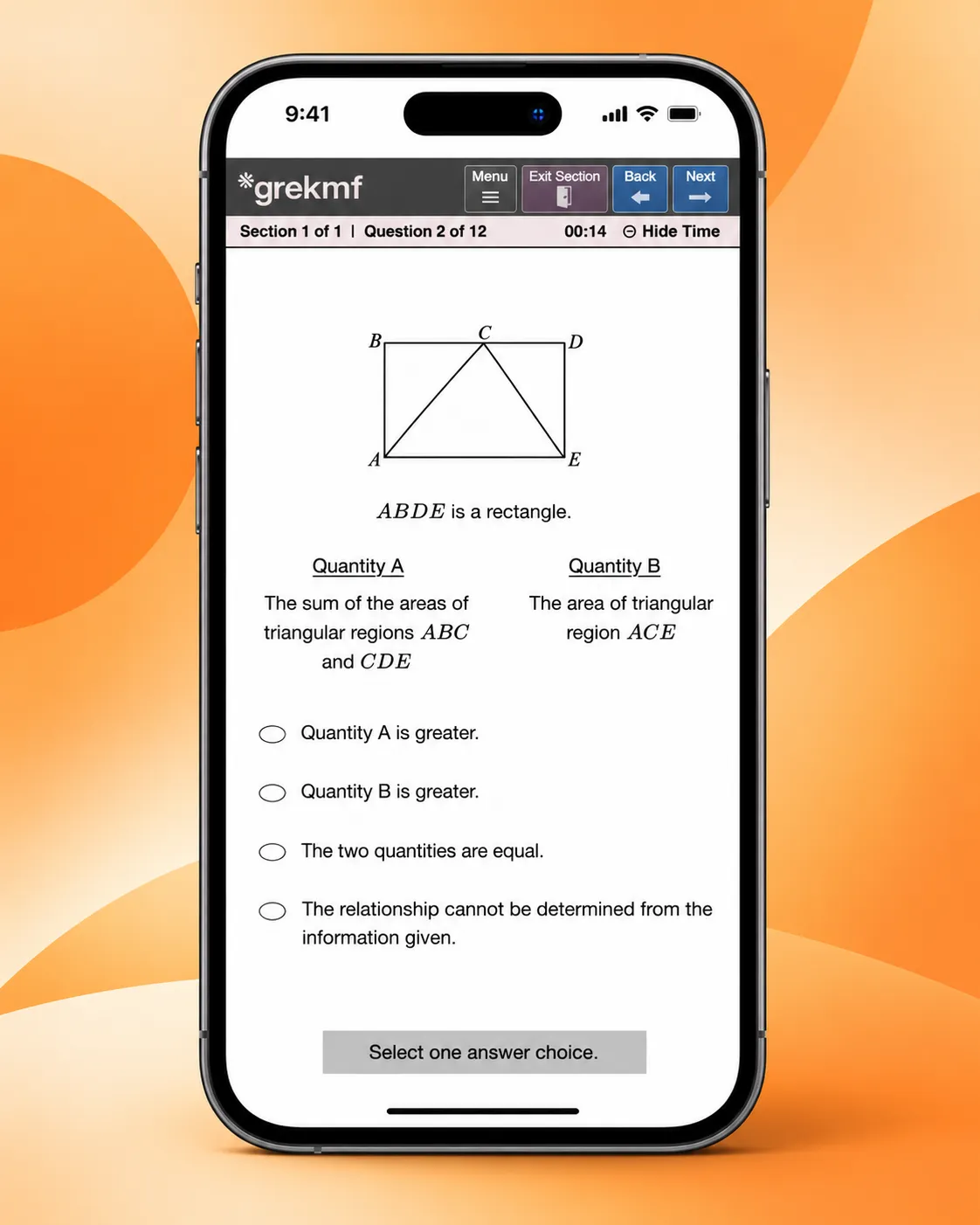
On a quantitative comparison item, the figure sits above the two quantities, and the four choices sit under that. A tall figure keeps its full height and pushes the choices down, so you scroll the page instead of losing the bottom of the diagram. The footer still says what the item wants: select one answer choice.
If you are drilling the free bank, this is the same KMF 1000 Quant described in A Cleaner Way to Practice the KMF 1000 Quant. The phone screen is how that set looks when you are not at a desk.
The calculator opens over the question
Quant still has the on-screen calculator. On a phone it opens on top of the item, so the figure and the choices stay behind it. You can read the display, tap Transfer Display, and close the pad without hunting for the question.
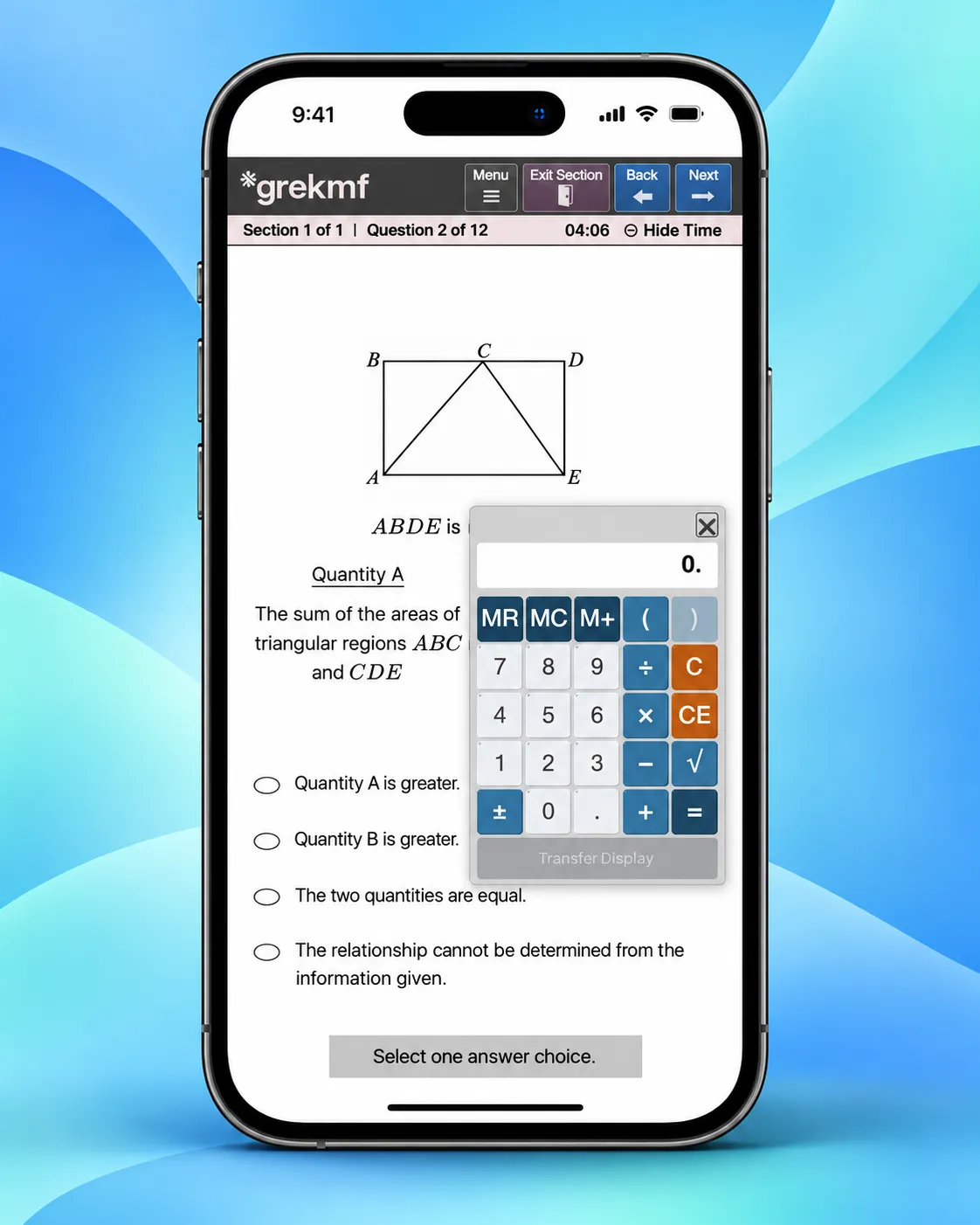
The buttons are the same pad covered in The Annotated GRE Calculator: memory, parentheses, clear entry, and Transfer Display. The phone change is where that pad sits, not which keys it has.
Reading passages sit above the question
On a wide screen, a reading passage sits on the left and the question on the right. On a phone, that split squeezes both. The passage now sits on top. The question and its choices sit underneath. You read the passage, then scroll into the question. A highlight in the passage stays on the phrase you marked.
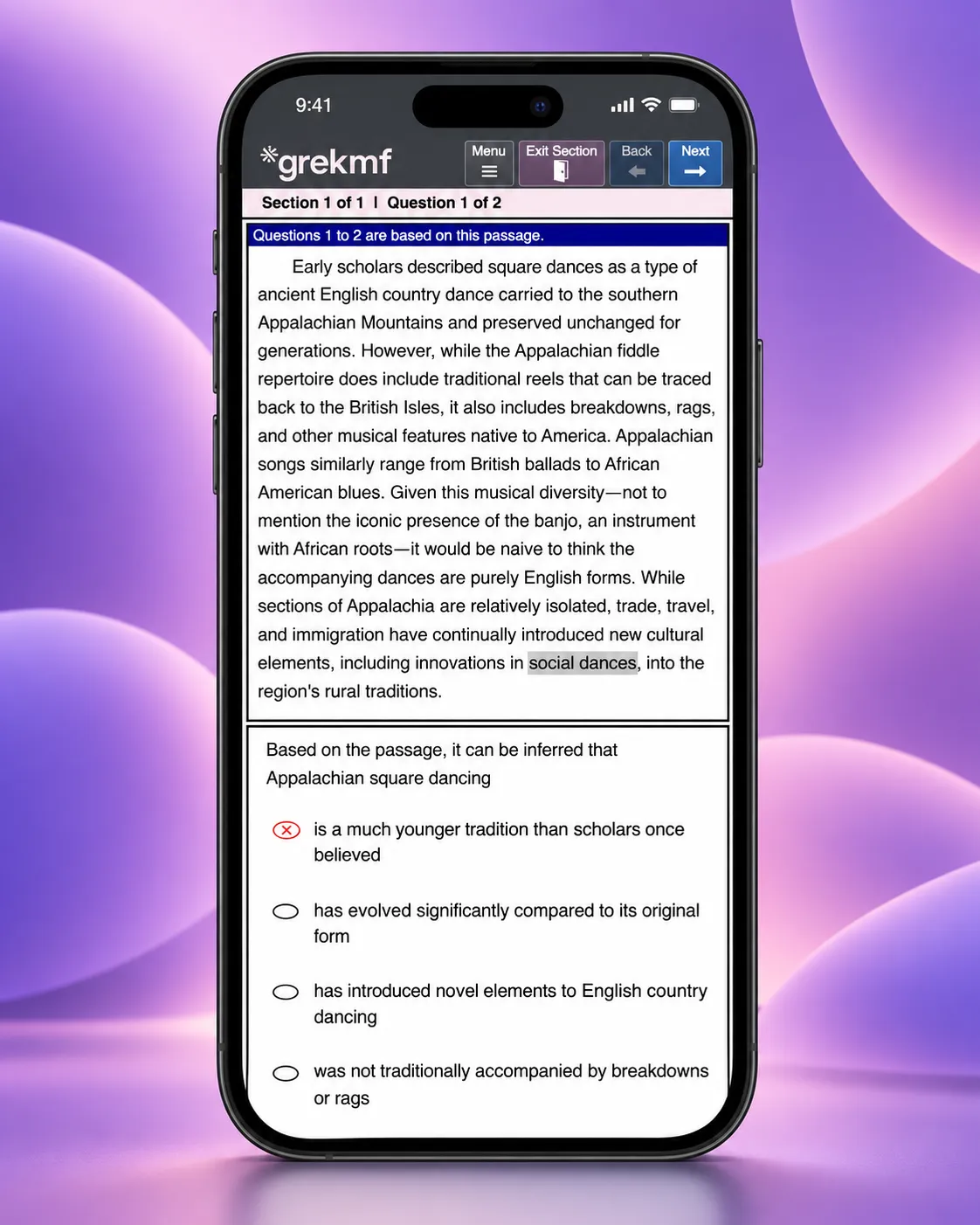
That is the same reading bank, opened from KMF RC. Text completion and sentence equivalence use this phone screen too: KMF TC and KMF SE. Full tests use it as well: 60Set Series and 24Set Series.
Your choice gets a mark on the oval
After you submit in a tutored set, the phone puts the result on the oval you picked. A wrong choice gets a red cross on that oval. A correct choice gets a green tick on that oval. The other choices stay empty. The mark sits on the oval, in the same place your selection was.
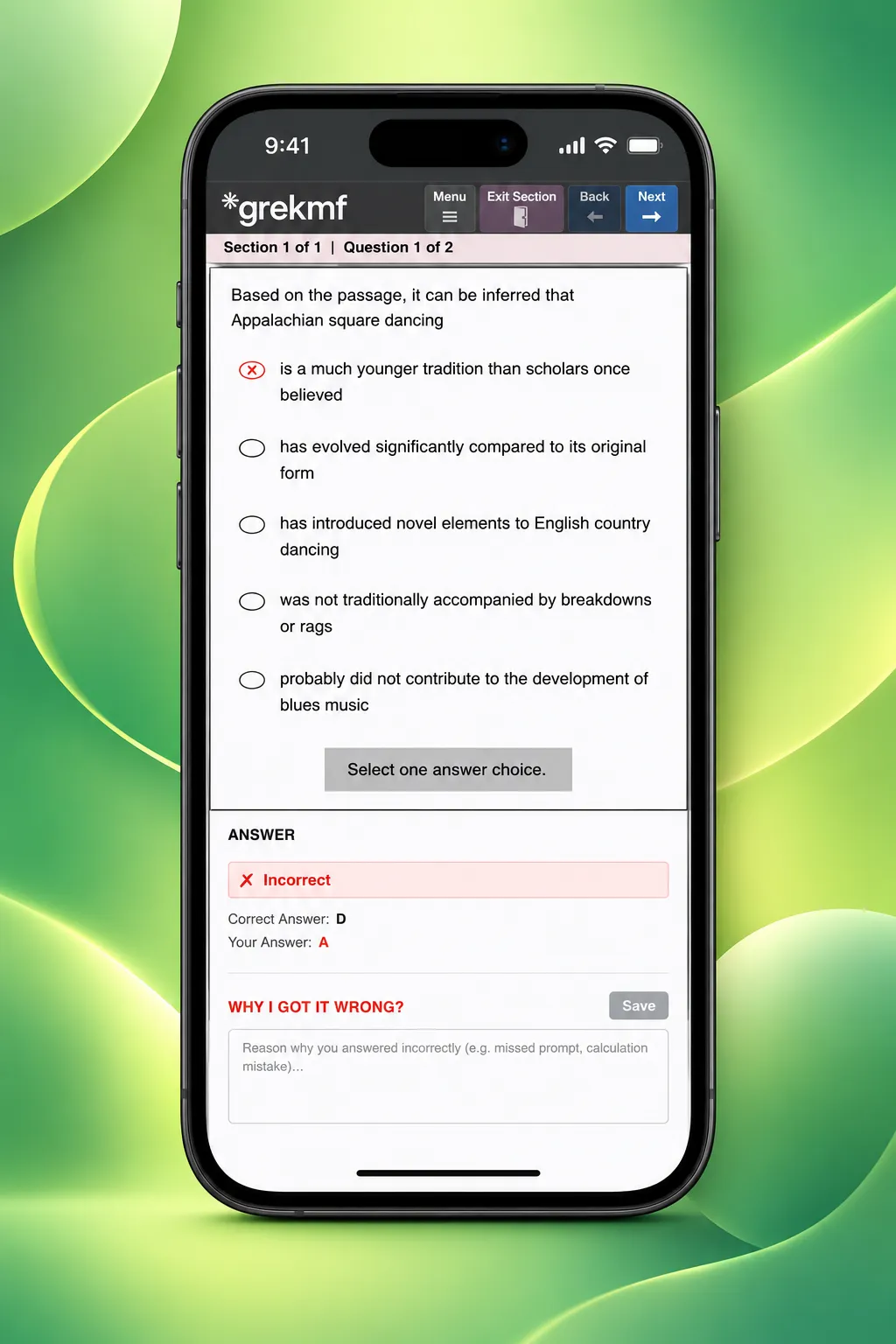
The page then moves to Answer, under the choices. You see Incorrect or Correct, the correct letter, and your letter. If you missed it, Why I Got It Wrong is in that same scroll, with Save. The note stays on the question, which is the error log from A Cleaner Way to Practice the KMF 1000 Quant.
The explanation continues under the question
Answer, your mistake note, and the written explanation are one column under the item. You keep scrolling. You do not drag a divider to make room for the write-up.
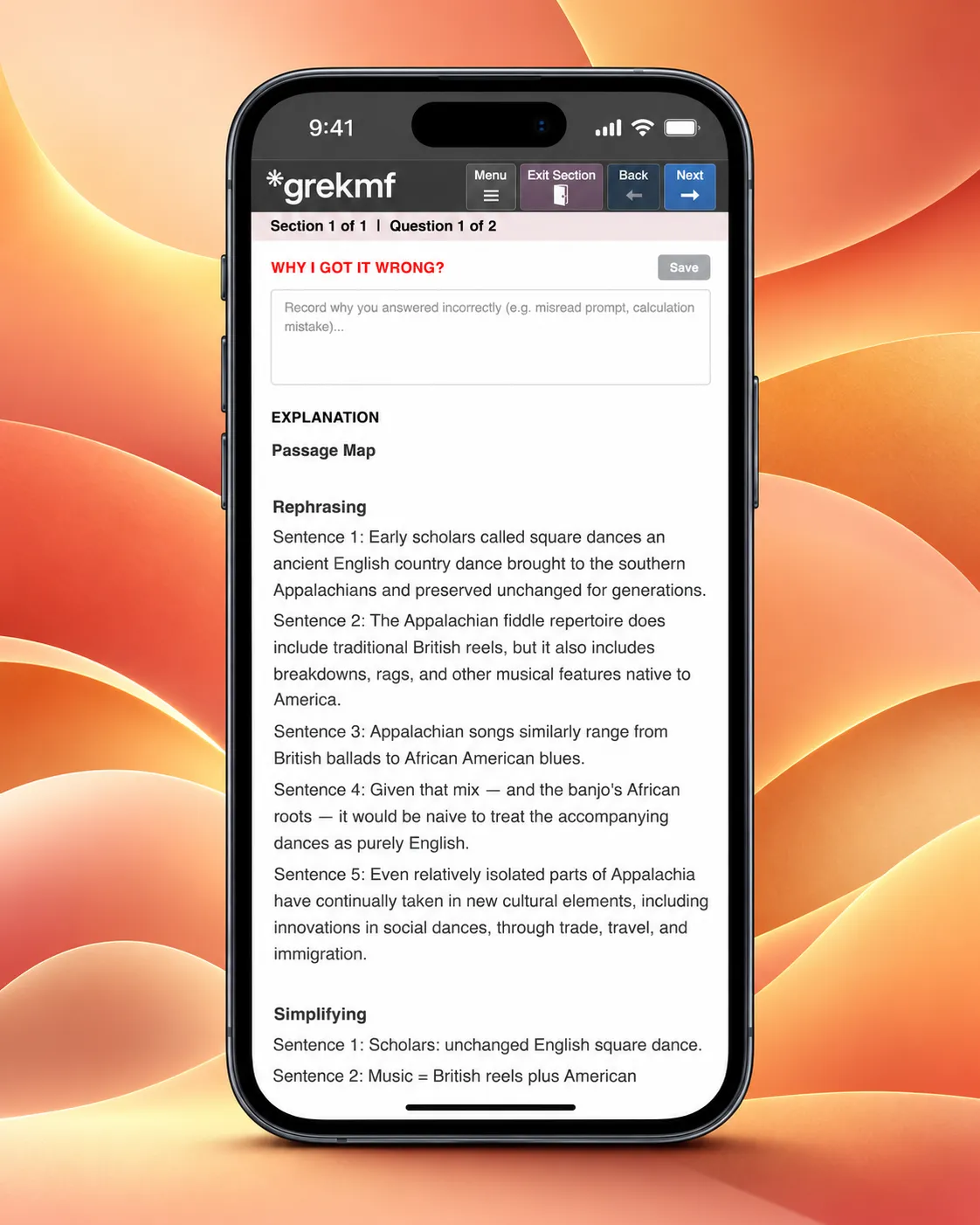
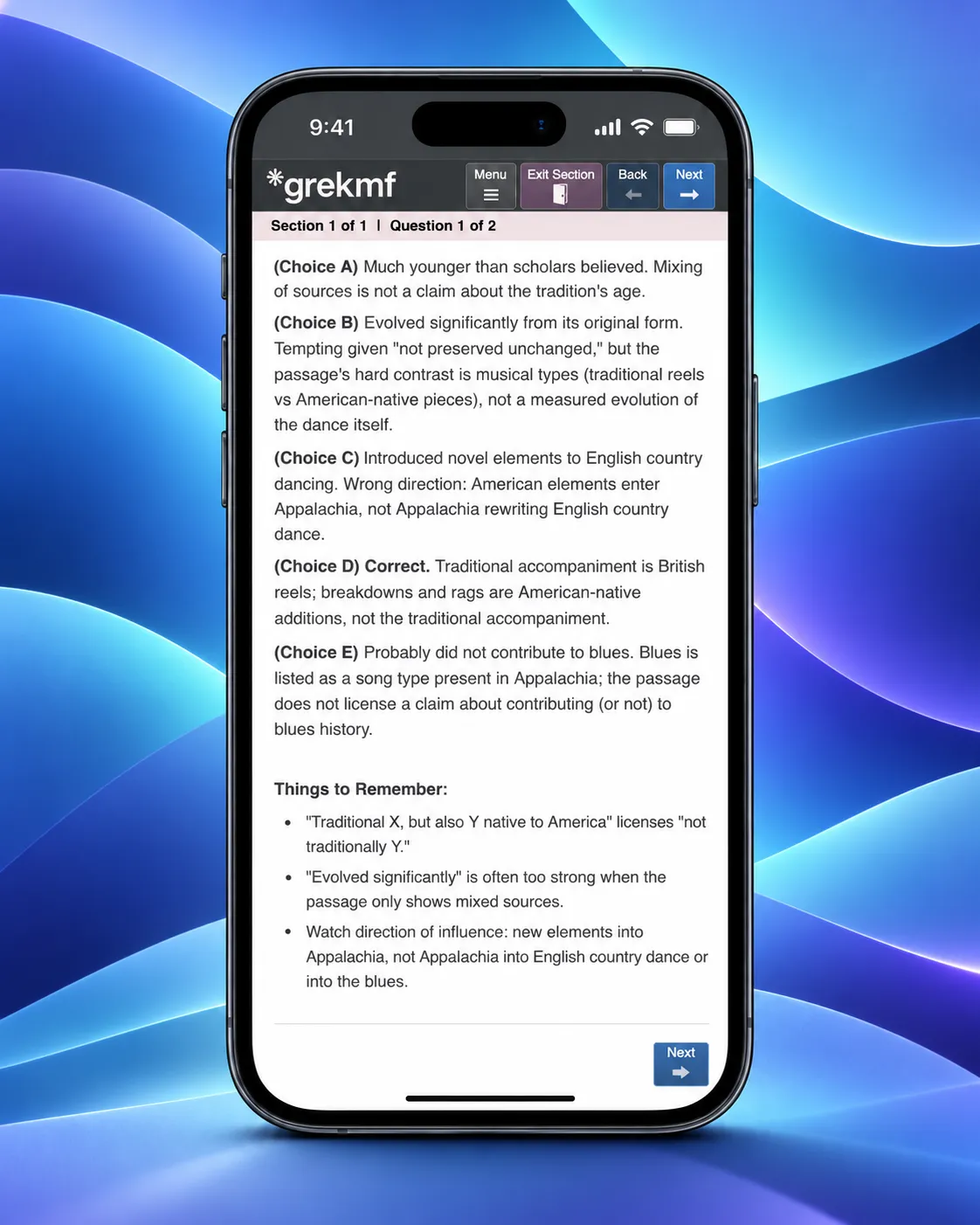
On a reading item that explanation is the usual walkthrough: a passage map, a rephrase of each sentence, a simpler version of the same lines, then a read of each choice. Keep scrolling and you get to the choice you picked and the reason it fails or holds.
Next sits at the end of the explanation
When the explanation ends, Next is there. You finish the last line, tap Next, and the following question loads. The Next in the top bar is still there when you are already at the top of the screen.
Where to try it
The phone layout is the exam screen, so it shows up wherever you open a set on a narrow window.
- Quant, including quantitative comparison and figures: Free KMF Quant. Open the set at KMF Quant 1000.
- Reading passages stacked over the question: KMF RC. Open it at grekmf.com/rc.
- Shorter verbal items on the same screen: KMF TC and KMF SE. Open them at grekmf.com/tc and grekmf.com/se.
- Full practice tests on the same phone screen: 60Set Series and 24Set Series. Open them at grekmf.com/60set and grekmf.com/24set.
- What each calculator key does, once the pad is open: The Annotated GRE Calculator.
Turn the phone sideways or sit down at a laptop and the wide exam screen is still there. The phone layout is for the sitting that actually happens on a phone.